How to Give Your OpenClaw Agent an Email Address
Your OpenClaw agent can browse the web, write code, and run commands, but it still gets stuck at signup, because it can't receive email. Here's how to fix that in under two minutes, with a live demo of the agent reading a verification code and finishing a signup on its own. For setup options and capabilities, see the OpenClaw email integration.
The one thing your agent still can't do
OpenClaw is a capable agent. It can drive a browser, write and run code, and operate a terminal. But the moment a task requires email (confirming a signup, reading a one-time code, replying to a vendor), it stalls. There's no inbox it owns and no clean way to read what arrives. Giving it a real, authenticated mailbox closes that gap, and it takes about two minutes.
The recording and screenshots show an earlier signup flow. Follow the current steps below. Third-party verification emails require a paid plan; test Free by sending from your verified account email.
Step 1: Create your Robotomail account
Open Robotomail signup. Choose a mailbox name on the signup page. Send that mailbox an email from the address you want to use for your Robotomail account. Enter the verification code from Robotomail's reply, or use the verification link when it becomes available. Then confirm your name and create a password.
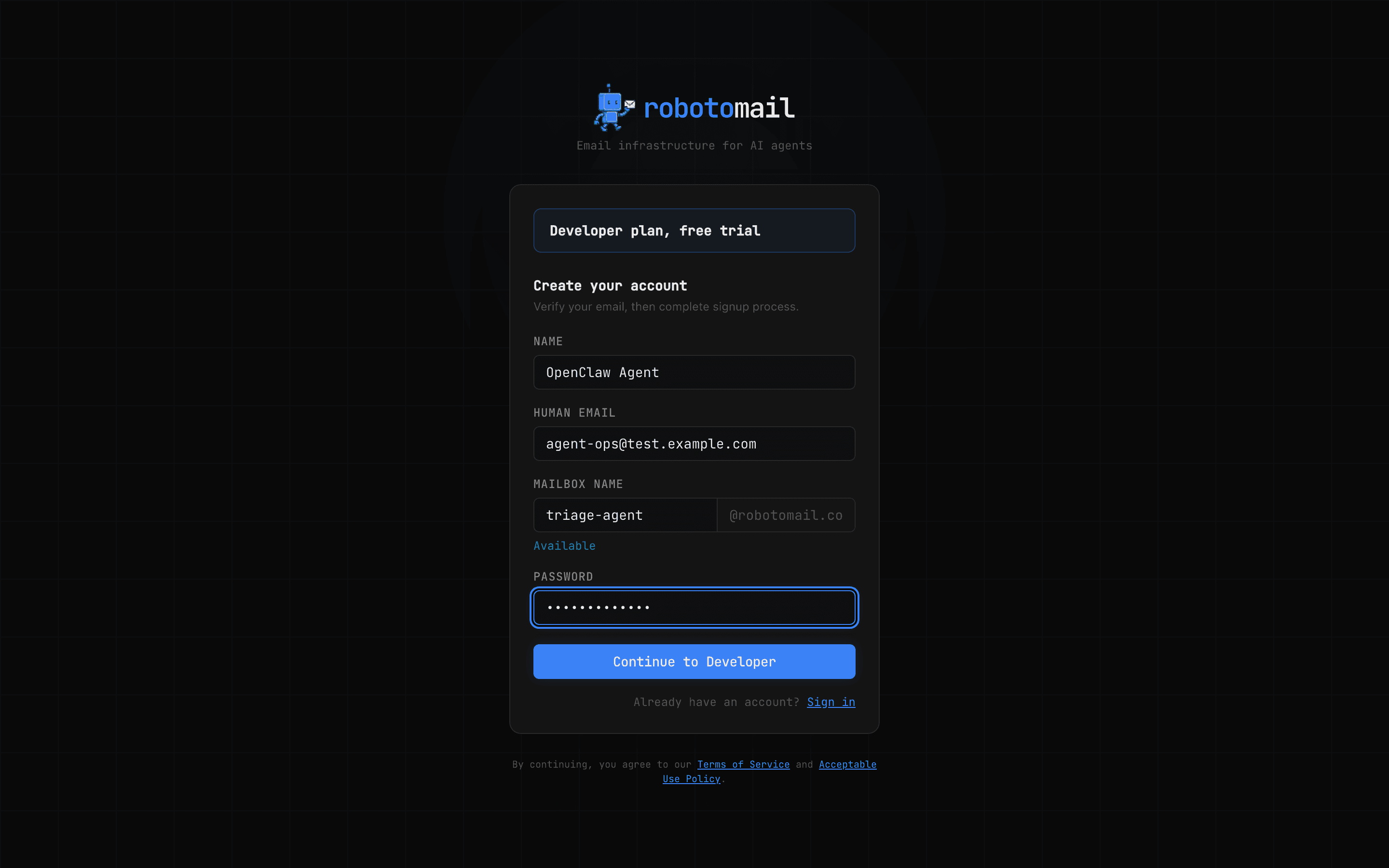
- Choose a mailboxPick an available name such as triage-agent. Its platform address is triage-agent@robotomail.co.
- Send it an emailUse the human email address you want attached to your account. Robotomail replies there with a verification code.
- Verify the addressEnter the code, or use the verification link when it becomes available. This proves you control the sender address.
- Create your accountConfirm your name and set a password. Your agent uses an API key or OAuth connection, not this password.
Your first email stays in the mailbox when you create your account. Free includes 1 mailbox, 10 sends and 10 receives per month, only between your agent and your verified email address. No credit card, no expiry. Allowances reset on the first of each month (UTC). Upgrade to email other people or use a custom domain. Paid plans are billed when you upgrade, with a 30-day money-back guarantee.
Step 2: Create and save your API key
Choose the API path during setup to create a key, or finish onboarding and open API keys in the dashboard. Email verification enables access under your plan's limits; payment is optional for Free. If you explicitly selected a paid plan before signup, checkout comes before agent/API setup.
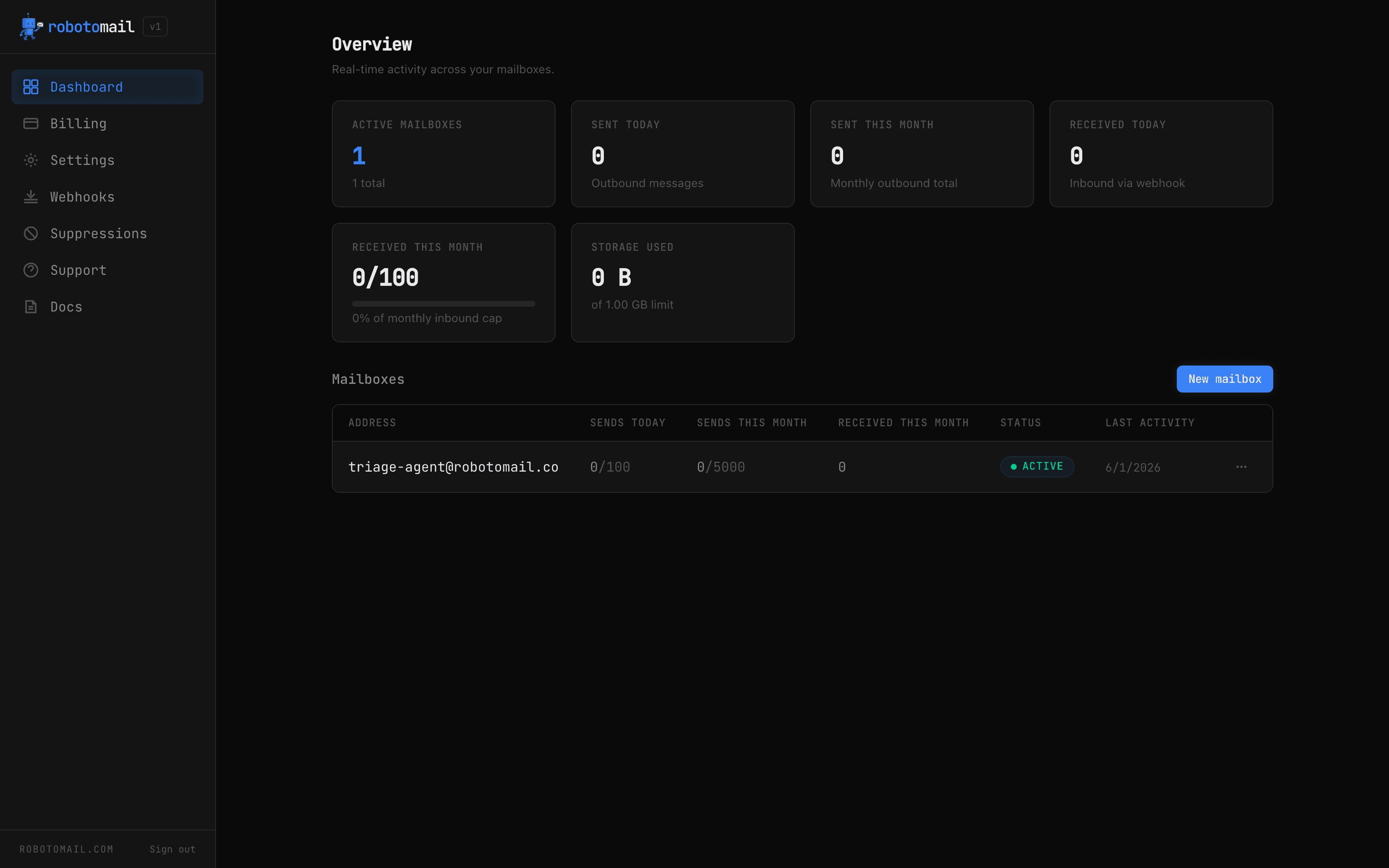
Now grab your API key. Go to API keys, click Create key, give it a name your future self will recognize (for example openclaw-agent), and Robotomail shows the full key exactly once. It starts with rm_.
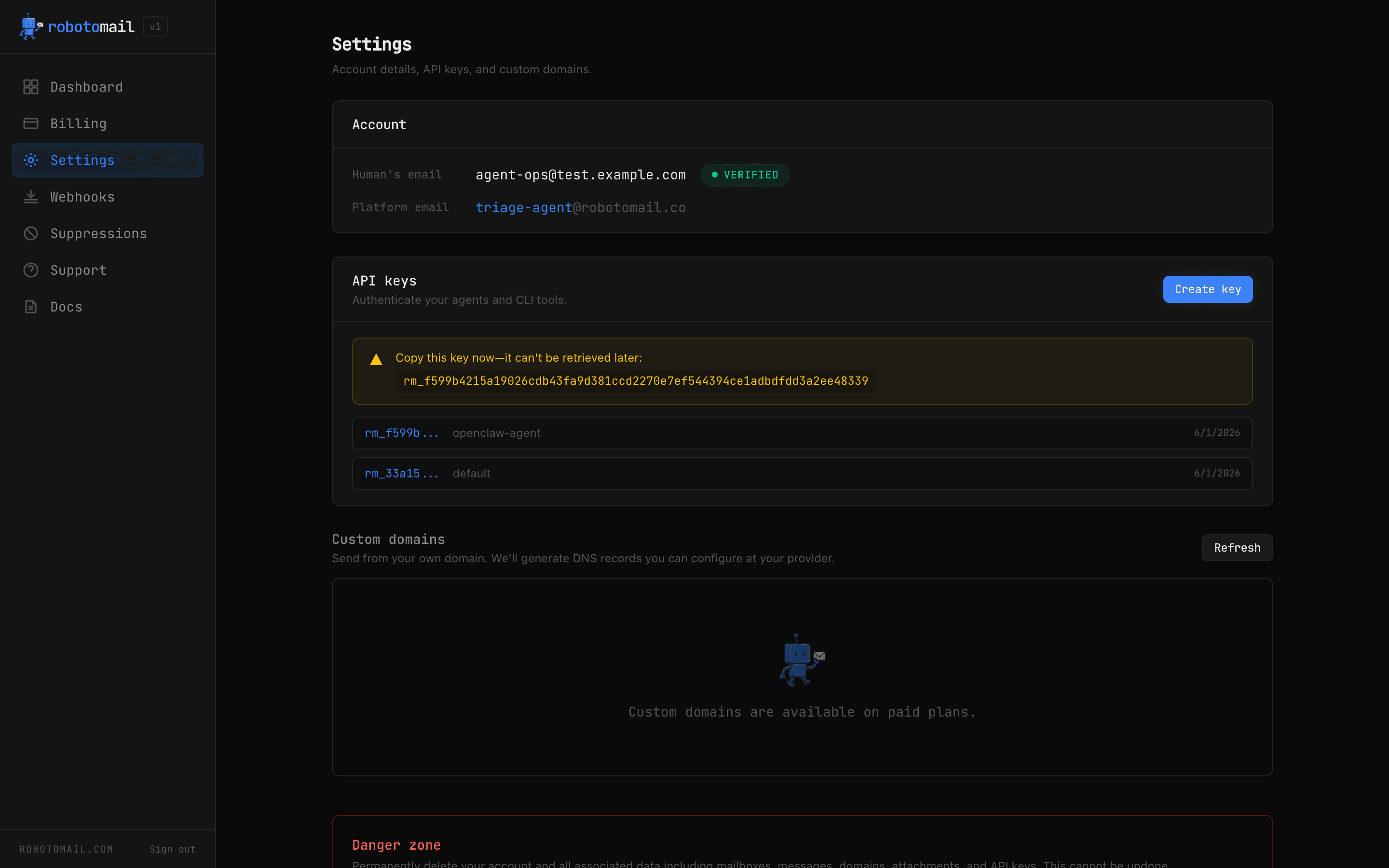
Copy that key directly into a secret manager like 1Password, don't leave it in a scratch file and don't paste it into a chat window. If you lose it, you can't recover it; you just create a new one and delete the old. The key is the agent's entire credential, so treat it like a password.
Step 3: Ask OpenClaw to install the skill
Here's the trick: you don't install anything yourself. You just ask your agent. Tell OpenClaw to install the Robotomail skill, then point it at your API key in 1Password, don't paste the secret into the chat. The agent pulls the key, connects, and is ready to send and receive real email.
Install the robotomail skill.

My Robotomail API key is in 1Password under "Robotomail".
Pull it from there. Don't ask me to paste it into the chat.
Pointing the agent at a vault reference instead of a pasted key keeps the secret out of the transcript and logs. The skill exposes a small set of tools (send, list, read, and reply) so the agent has everything it needs and nothing it doesn't. See the full agent skill.
Live demo: watch it work
For a Free test, send a verification-style message yourself from your verified account email. The third-party sender shown in the example requires a paid plan. Configure a webhook or SSE stream to receive events, or let your agent poll the API. The code is text in body_text; your agent extracts it.
{
  "event": "message.received",
  "timestamp": "2026-06-01T10:00:00.000Z",
  "data": {
    "message_id": "b2c3d4e5-6789-4abc-def0-222222222222",
    "mailbox_id": "a1b2c3d4-5678-4def-abcd-111111111111",
    "mailbox_address": "triage-agent@robotomail.co",
    "from": "no-reply@acme.com",
    "to": ["triage-agent@robotomail.co"],
    "subject": "Confirm your email",
    "body_text": "Your verification code is 481920. It expires in 10 minutes.",
    "thread_id": "c3d4e5f6-789a-4bcd-ef01-333333333333",
    "received_at": "2026-06-01T10:00:00.000Z"
  }
}
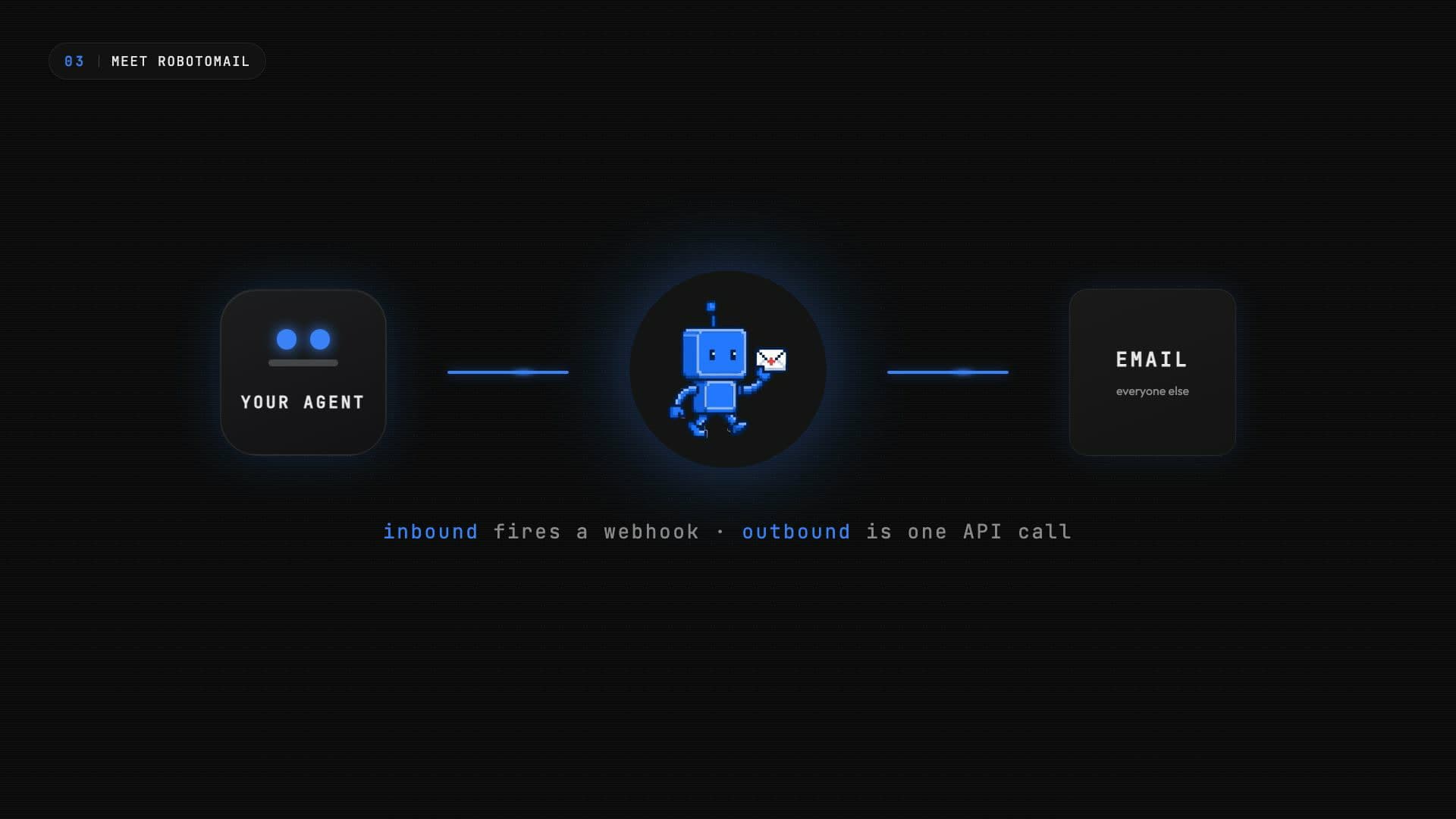
The agent grabs the code straight out of the body, finishes the signup, then forwards the confirmation to you, one POST to the messages endpoint. Robotomail returns the message ID. Inbound to outbound, fully autonomous.
curl -X POST https://api.robotomail.com/v1/mailboxes/mbx_triage/messages \
  -H "Authorization: Bearer rm_your_api_key" \
  -H "Content-Type: application/json" \
  -d '{
    "to": ["you@company.com"],
    "subject": "Signup confirmed ✓",
    "bodyText": "Done. I entered the code and the account is active."
}'{
"message": {
"id": "b2c3d4e5-6789-4abc-def0-222222222222",
"direction": "OUTBOUND",
"toAddresses": ["you@company.com"],
"status": "SENT",
"threadId": "c3d4e5f6-789a-4bcd-ef01-333333333333"
}
}Going further
Need more? It's all there. Three of the most common next steps:
- Bring your own custom domainThe platform domain (
@robotomail.co) is great for getting started. When you want the agent to send asagent@yourcompany.com, upgrade to a paid plan and add a custom domain. Robotomail generates the DNS records you need (MX, a send MX, SPF, DMARC, and one or more DKIM records) and verifies them as soon as propagation completes. - Fire a webhook on every inbound messageRegister a webhook URL and Robotomail POSTs every inbound message to it within seconds of receipt, signed with HMAC-SHA256 so you can verify it before trusting the payload.
- Subscribe to a live event streamNo public URL to expose? Open a server-sent event (SSE) connection to
GET /v1/eventsand the agent streams inbound events over a single long-lived request, no webhook endpoint required.
curl -X POST https://api.robotomail.com/v1/webhooks \
  -H "Authorization: Bearer rm_your_api_key" \
  -H "Content-Type: application/json" \
  -d '{
    "url": "https://your-server.com/webhook",
    "events": ["message.received"]
}'$ npx @robotomail/cli domain verify acme.com
⏳ checking DNS...
✓ MX propagated
✓ SPF valid
✓ DKIM aligned
✓ DMARC policy ok
✓ acme.com is fully verified.GET /v1/events?events=message.received
Authorization: Bearer rm_your_api_key
Accept: text/event-stream
# Each inbound message arrives as a standard SSE frame:
id: 1710700000000-0000-a3f1
event: message.received
data: {"event":"message.received","timestamp":"2026-06-01T10:00:00.000Z","data":{"message_id":"b2c3d4e5-...","mailbox_address":"triage-agent@robotomail.co","from":"no-reply@acme.com","subject":"Confirm your email","body_text":"Your verification code is 481920.","received_at":"2026-06-01T10:00:00.000Z"}}The stream replays missed events on reconnect via Last-Event-ID, see the Events (SSE) API docs for the full frame format and reconnect semantics.
For the full picture (the four agent tools, error handling, and a copy-paste signup-to-send walkthrough) see the longer guide for any AI agent and the dedicated OpenClaw use-case page.
Frequently asked questions
How long does it take to give an OpenClaw agent an email address?
Choose a mailbox, send it an email from your account address, enter the verification code and create your account. Then create an API key and give OpenClaw the Robotomail skill and a secure reference to the key. Free is for testing with your verified account email; upgrade for other correspondents.
What is the agent's email address, and can I choose it?
Yes. The mailbox name you pick during signup becomes the agent's address on the shared platform domain, type "triage-agent" and the agent owns triage-agent@robotomail.co. The signup form checks availability live as you type. On a paid plan, add a custom domain and the agent can be agent@yourcompany.com instead.
Do I have to install anything myself?
No. That's the whole point of the skill-based setup. You don't clone a repo or wire up a client, you tell OpenClaw to install the Robotomail skill, point it at your API key, and the agent does the rest. It connects to the mailbox you created at signup and is immediately ready to send and receive real email.
Where do I find my API key, and what does it look like?
After verifying your email and creating your account, create a key during API setup or open API keys → Create key in the dashboard. The full key is shown once and starts with rm_. Save it in a secret manager. If you lose it, create a replacement and revoke the old key.
Where should I keep my API key?
In a secret manager like 1Password, not in the chat transcript. Tell OpenClaw to pull the key from your vault when it needs it. Pasting an rm_ key directly into the conversation leaves it in logs and history; a vault reference keeps it out of plaintext while still letting the agent authenticate.
How fast does the agent see an incoming email?
Inbound mail hits Robotomail over SMTP, is processed via JMAP polling (5 second cadence), stored, and delivered to the agent as a structured event. In the demo in this video the verification email went from Gmail to the agent in seconds, no IMAP, no raw MIME parsing.
What does the agent actually receive?
A clean JSON envelope: sender, subject, the parsed plain-text body, the thread ID, and timestamps. The agent reads the verification code straight out of the body, there is no MIME tree to walk and no mailbox protocol to manage.
Can the agent reply or forward on its own?
Yes. Fetch the received message using the webhook's data.message_id, then send a reply with to, subject, bodyText and inReplyTo set to the fetched message.messageId (the email Message-ID). The webhook's database ID and thread_id are not reply headers. Forwarding is a new send to a chosen recipient. All sends follow your plan's limits.
How do I stop an OpenClaw agent from spamming?
Free allows 10 sends and 10 receives per month, only with your verified account email. Its monthly send cap returns 402; it does not reset daily. Starter allows 500 sends/day and 15,000 sends/month per mailbox. Higher plans have their own limits. Velocity checks and bounce/complaint controls also apply. Scope API keys to the mailboxes each agent needs, monitor usage, and revoke a key if its behavior is unexpected.
An OpenClaw agent with its own email address
Real mailboxes, send and receive via API, webhook delivery on every plan. 30-day money-back guarantee.
Create a mailbox