Blog
Updates, guides, and ideas from the Robotomail team.

How to Give Grok bot Email
Give Grok Bot its own email address with Robotomail. Connect over MCP, set a sender name, and send your first message with a copy-and-paste setup prompt.
Read post
AgentMail Alternatives: 4 Options Compared for Agent Email
Robotomail, Gmail API, transactional providers, and self-hosted mail compared on setup, inbound receiving, OAuth, and per-agent mailbox limits.
Read post
Email APIs That Support Receiving: 10 Best for 2026
The 10 best email APIs that support receiving in 2026. Compare inbound webhooks, pricing, and reliability for send-and-receive email in your app.
Read post
Best Email for AI Agents in 2026: Full Comparison
The best email for AI agents in 2026, compared: consumer inboxes, transactional APIs, and agent-native platforms that send and receive on their own.
Read post
Automated Email Account Creation API Programmatic Setup
How to create real, working email accounts from code with one API call, plus webhook delivery, naming patterns, and lifecycle cleanup for agents.
Read post
Build an AI Agent Support Email Inbox: Setup Guide
Wire an AI agent to your support@ inbox: provision the mailbox, handle inbound webhooks, reply in-thread, and hand off to a human on low confidence.
Read post
Codex Agent Email: Give Codex Its Own Mailbox
Provision a real mailbox for an OpenAI Codex agent, pass the API key through .env, send the first email, and read replies over SSE or polling.
Read post
Email API Pricing for AI Agents: Send + Receive Compared
How email API pricing works for AI agents at 1, 10 and 50 mailboxes: who bills inbound, who caps mailboxes, and where the real cost hides.
Read post
Best Email API for Agent Workflows
Compare email APIs for agent workflows on inbound webhooks, per-agent mailboxes, threading and reply loops, with working code to ship today.
Read post
Pydantic AI Email Integration: Typed Send and Receive
Give a Pydantic AI agent its own inbox: typed send tools, inbound webhooks that trigger agent runs, and validated reply models with real code.
Read post
IMAP for AI Agents: Why It Breaks and What to Use
Why IMAP is a poor fit for AI agents: connection state, polling, MIME parsing, IDLE timeouts. Plus what webhook-based agent email looks like.
Read post
Vercel AI SDK Email: Give Your Agent a Real Inbox
Wire Vercel AI SDK apps to a real mailbox: receive inbound mail in a route handler, generate replies with streamText, and send them back on thread.
Read post
Email Prompt Injection: Defending Agent Inboxes
How attackers use inbound mail to hijack AI agents, and the practical defenses: content isolation, tool allowlists, reply policies, and sender trust.
Read post
LangGraph Email Integration: Inbound Events and Replies
Wire email into LangGraph: inbound webhooks as graph events, send and reply nodes, and human-in-the-loop interrupts resumed by an email reply.
Read post
How to Parse Inbound Email Webhook Payloads
How to parse inbound email webhook payloads: required fields, MIME edge cases, attachments, threading ids, and idempotent retry handling.
Read post
AutoGen Email Integration for Multi-Agent Teams
Wire real email into AutoGen: provision mailboxes, expose a send tool, turn inbound webhooks into agent messages, and keep replies in the same thread.
Read post
Email API Without OAuth: The API-Key Alternative
Why OAuth breaks AI agent email: consent screens, refresh token expiry, app verification. How an API-key email API gets an agent sending in minutes.
Read post
Build an n8n Email Agent With a Real Inbox
Give your n8n AI agent its own email address: trigger workflows from inbound mail via webhook, send threaded replies, and run per-workflow mailboxes.
Read post
How to Send Email From AI Agent: Python and TypeScript
Send email from AI agent code in Python or TypeScript: create a mailbox, one POST, plus the deliverability basics agents get wrong.
Read post
OpenAI Agents SDK Email: Give Your Agent an Inbox
Wire an OpenAI Agents SDK agent to a real mailbox: send and reply as function tools, inbound webhook driving the loop, threading handled. Working code.
Read post
AI Email Agent: Build One That Sends and Receives
What an AI email agent is, and how to build one with its own mailbox, inbound webhook, reply loop, and correct threading. With working code.
Read post
Best Email APIs With Webhook Events for AI Agents
A webhook-first comparison of email APIs: inbound events, payload shape, signing, retries, ordering and replay for agents that react to incoming mail.
Read post
Hermes Agent Email: Give Your Nous Agent an Inbox
Step-by-step guide to wiring a real email inbox into a Hermes agent: mailbox creation, tool schemas, inbound webhooks, and threaded replies.
Read post
Email for OpenClaw Agents: Full Integration Guide
Wire real email into OpenClaw agents: provision a mailbox, expose send and reply tools, handle inbound webhooks, and keep threading correct.
Read post
CrewAI Email Integration: Inboxes for Your Crew
Wire real inboxes into CrewAI: shared or per-agent mailboxes, send and reply tools, and inbound webhooks that kick off crew tasks.
Read post
LangChain Email Integration: Send and Receive as Tools
Wire email into LangChain agents: send/receive tools, inbound webhooks that resume the loop, threading, and idempotency patterns that survive production.
Read post
Email MCP Server: Give Any MCP Agent an Inbox
How to build an email MCP server: the tool surface for sending, replying, threading and receiving mail, with working TypeScript and API examples.
Read post
Alternatives to the Gmail API for AI Agents
Why the Gmail API fights autonomous agents: OAuth refresh, quota units, per-seat costs. Compare agent-native email APIs, SMTP+IMAP, and inbound webhooks.
Read post
AgentMail vs Gmail API for AI Agents
Compare AgentMail, the Gmail API, and Robotomail for agent email. Why OAuth consent and per-user quotas break autonomy, and what to use instead.
Read post
Mailbox for AI Agents: Provision One via API
Give an AI agent a real, addressable mailbox with one API call. Send, receive, thread, and skip SMTP config and OAuth consent screens entirely.
Read post
What Is an Agentic Inbox? (And How to Build One)
An agentic inbox is a real mailbox owned by an AI agent. Learn what it needs, then provision one by API, receive via webhook, and reply in-thread.
Read post
How to Test Email Delivery: A Developer's Inbox Guide
Learn how to test email delivery with our developer guide. Cover sandbox setup, SMTP logs, spam testing, and automatable CI workflows.
Read post
10 Email Automation Best Practices for 2026
Master our top 10 email automation best practices for AI agents. Learn about DKIM, webhooks, threading, and more for secure, reliable agent-native email.
Read post
How to Publish DMARC Record: A 2026 Guide
Learn to publish DMARC record in DNS, from TXT syntax to enforcement, to boost email deliverability in 2026.
Read post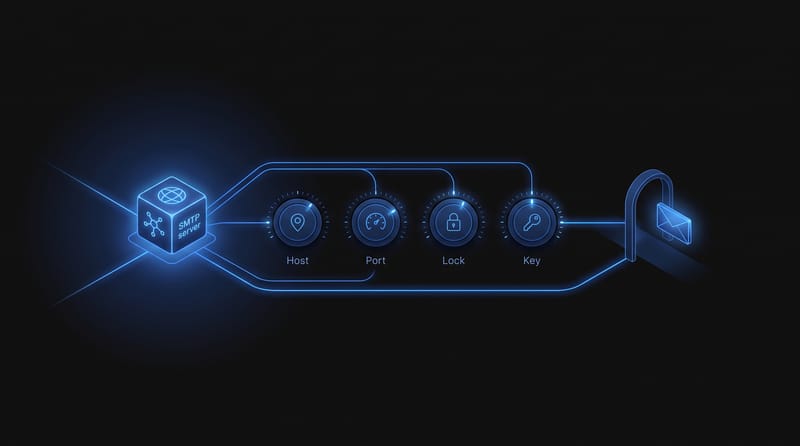
How to Configure SMTP Host for Reliable Email Delivery
Learn how to configure SMTP host settings including ports, TLS, authentication, and DNS records. Practical steps, testing methods, and common error fixes.
Read post
How to Send an Attachment via Email API for AI Agents
Learn how to send an attachment programmatically using REST APIs, presigned URLs, and MIME payloads. Built for AI agent developers using Robotomail.
Read post
Email Notification Settings for Agent Mailboxes
Step-by-step guide to configuring email notification settings for agent-native mailboxes, including webhooks, SSE, polling, and security.
Read post
Build an Email to Ticket System Developers Trust
Learn how to build an efficient email to ticket system that gains developer trust. Discover key strategies for a reliable and user-friendly solution in 2026.
Read post
Undelivered Email Message: A Practical Guide to Fix It
Learn what an undelivered email message really means, decode bounce codes, diagnose root causes, and apply fixes that work for 2026 workflows.
Read post
Notification as a Service: Agent-Native Email Guide 2026
Discover how notification as a service works and why agent-native platforms like Robotomail redefine AI messaging.
Read post
Bounce Rate Reduction: A 2026 Complete Guide
Discover effective bounce rate reduction strategies in our 2026 guide, covering diagnostics, GA4, page speed, and AI email workflows.
Read post
How to Launch a Responsible Disclosure Reward Program
Learn how to design, launch, and manage a responsible disclosure reward program. This step-by-step guide covers policy, rewards, triage, and payouts.
Read post
How Do I Know if My Email Sent: API Responses 2026
Discover how do i know if my email sent using API responses, webhooks, and detailed event logs. This 2026 guide helps AI agent developers verify email delivery
Read post
Check MX Settings: Interpret & Fix DNS Records in 2026
Quickly check MX settings with our 2026 guide. Use command-line tools & web checkers to interpret MX records, fix errors, and verify DNS configurations
Read post
Inbound Package Meaning: From Warehouse Box to API Payload
Confused by the 'inbound package meaning'? Learn the critical difference between the logistics term and the API payload concept AI developers must know.
Read post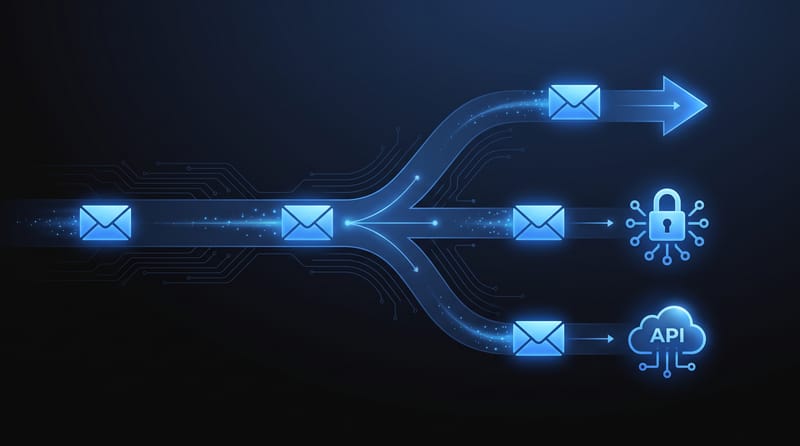
Your Mail PHP Sender Guide: 3 Ways to Send Email in 2026
Learn how to choose the right mail PHP sender. A hands-on guide to the mail() function, PHPMailer with SMTP, and modern REST APIs for reliable email delivery.
Read post
Robust Email Virus Scanning for AI Agents
Build a robust email virus scanning pipeline for AI agents. Covers architecture, Robotomail webhooks, engine selection & secure attachments.
Read post
Tracking Domain Names: A Developer's Guide to Reputation
Learn what tracking domain names are, how CNAMEs work, and why they're critical for email deliverability and reputation management in automated systems.
Read post
Resend Activation Link: A Secure Developer Guide for 2026
Build a secure and user-friendly 'resend activation link' flow for your app. A developer's guide to token expiry, rate-limiting, and preventing abuse.
Read post
Email Server Setup: A Developer's Production Guide
A step-by-step developer guide to email server setup. Learn to configure MTA/MDA, DNS, SPF, DKIM, DMARC, and TLS for production-ready email.
Read post
How to Set Up DMARC: A Practical Step-by-Step Guide
Learn how to set up DMARC correctly with our step-by-step guide. Protect your domain from spoofing by configuring SPF, DKIM, and DMARC policies.
Read post
What Is Email Api: A Developer's Guide for 2026
Discover what is email api and how it works for developers. This 2026 guide covers REST vs SMTP, data flows, security, and AI use cases.
Read post
Email Open Rates for AI Agents: A New Playbook
Don't trust email open rates in 2026. Learn why they're broken by privacy features and how AI agents can use reliable metrics like CTOR and webhooks instead.
Read post
Agent Console Login: Secure Access & Troubleshooting 2026
Master your agent console login for web UI, SSO, & API. Fix common errors & ensure secure authentication for AI agents. Get started in 2026.
Read post