Blog
Updates, guides, and ideas from the Robotomail team.

How to Give Grok bot Email
Give Grok Bot its own email address with Robotomail. Connect over MCP, set a sender name, and send your first message with a copy-and-paste setup prompt.
Read post
AgentMail Alternatives: Agent Email Workflows Compared
Evaluate Robotomail for agent-owned email. Compare mailbox identity, receiving, threads, integration, operating controls and migration.
Read post
Email APIs That Support Receiving: Inbound Workflows Compared
Compare inbound mailbox APIs, routed email and existing-account access. Connect Robotomail receiving through webhooks, SSE or polling.
Read post
Best Email for AI Agents: What to Evaluate
Compare agent mailbox workflows, existing-account access and inbound email APIs. Start with Robotomail and evaluate a complete send-and-reply conversation.
Read post
What Is Agentic Mail? A Developer's Guide
Agentic mail is email infrastructure for AI agents: real mailboxes, inbound webhooks, threading. What it is, how it differs from an email API, with code.
Read post
Automated Email Account Creation API Programmatic Setup
How to create real, working email accounts from code with one API call, plus webhook delivery, naming patterns, and lifecycle cleanup for agents.
Read post
Build an AI Agent Support Email Inbox: Setup Guide
Wire an AI agent to your support@ inbox: provision the mailbox, handle inbound webhooks, reply in-thread, and hand off to a human on low confidence.
Read post
Codex Agent Email: Give Codex Its Own Mailbox
Provision a real mailbox for an OpenAI Codex agent, pass the API key through .env, send the first email, and read replies over SSE or polling.
Read post
Email API Pricing for AI Agents: Send + Receive Compared
How email API pricing works for AI agents at 1, 10 and 50 mailboxes: who bills inbound, who caps mailboxes, and where the real cost hides.
Read post
Best Email API for Agent Workflows
Compare email APIs for agent workflows on inbound webhooks, per-agent mailboxes, threading and reply loops, with working code to ship today.
Read post
Pydantic AI Email Integration: Typed Send and Receive
Give a Pydantic AI agent its own inbox: typed send tools, inbound webhooks that trigger agent runs, and validated reply models with real code.
Read post
IMAP for AI Agents: Why It Breaks and What to Use
Why IMAP is a poor fit for AI agents: connection state, polling, MIME parsing, IDLE timeouts. Plus what webhook-based agent email looks like.
Read post
Vercel AI SDK Email: Give Your Agent a Real Inbox
Wire Vercel AI SDK apps to a real mailbox: receive inbound mail in a route handler, generate replies with streamText, and send them back on thread.
Read post
LangGraph Email Integration: Inbound Events and Replies
Wire email into LangGraph: inbound webhooks as graph events, send and reply nodes, and human-in-the-loop interrupts resumed by an email reply.
Read post
How to Parse Inbound Email Webhook Payloads
How to parse inbound email webhook payloads: required fields, MIME edge cases, attachments, threading ids, and idempotent retry handling.
Read post
AutoGen Email Integration for Multi-Agent Teams
Wire real email into AutoGen: provision mailboxes, expose a send tool, turn inbound webhooks into agent messages, and keep replies in the same thread.
Read post
Email API Without OAuth: The API-Key Alternative
Why OAuth breaks AI agent email: consent screens, refresh token expiry, app verification. How an API-key email API gets an agent sending in minutes.
Read post
Build an n8n Email Agent With a Real Inbox
Give your n8n AI agent its own email address: trigger workflows from inbound mail via webhook, send threaded replies, and run per-workflow mailboxes.
Read post
How to Send Email From AI Agent: Python and TypeScript
Send email from AI agent code in Python or TypeScript: create a mailbox, one POST, plus the deliverability basics agents get wrong.
Read post
OpenAI Agents SDK Email: Give Your Agent an Inbox
Wire an OpenAI Agents SDK agent to a real mailbox: send and reply as function tools, inbound webhook driving the loop, threading handled. Working code.
Read post
AI Email Agent: Build One That Sends and Receives
What an AI email agent is, and how to build one with its own mailbox, inbound webhook, reply loop, and correct threading. With working code.
Read post
Best Email APIs With Webhook Events for AI Agents
A webhook-first comparison of email APIs: inbound events, payload shape, signing, retries, ordering and replay for agents that react to incoming mail.
Read post
Hermes Agent Email: Give Your Nous Agent an Inbox
Step-by-step guide to wiring a real email inbox into a Hermes agent: mailbox creation, tool schemas, inbound webhooks, and threaded replies.
Read post
Email for OpenClaw Agents: Full Integration Guide
Wire real email into OpenClaw agents: provision a mailbox, expose send and reply tools, handle inbound webhooks, and keep threading correct.
Read post
CrewAI Email Integration: Inboxes for Your Crew
Wire real inboxes into CrewAI: shared or per-agent mailboxes, send and reply tools, and inbound webhooks that kick off crew tasks.
Read post
LangChain Email Integration: Send and Receive as Tools
Wire email into LangChain agents: send/receive tools, inbound webhooks that resume the loop, threading, and idempotency patterns that survive production.
Read post
Email MCP Server: Give Any MCP Agent an Inbox
How to build an email MCP server: the tool surface for sending, replying, threading and receiving mail, with working TypeScript and API examples.
Read post
Alternatives to the Gmail API for AI Agents
Why the Gmail API fights autonomous agents: OAuth refresh, quota units, per-seat costs. Compare agent-native email APIs, SMTP+IMAP, and inbound webhooks.
Read post
AgentMail vs Gmail API for AI Agents
Compare AgentMail, the Gmail API, and Robotomail for agent email. Why OAuth consent and per-user quotas break autonomy, and what to use instead.
Read post
Mailbox for AI Agents: Provision One via API
Give an AI agent a real, addressable mailbox with one API call. Send, receive, thread, and skip SMTP config and OAuth consent screens entirely.
Read post
What Is an Agentic Inbox? (And How to Build One)
An agentic inbox is a real mailbox owned by an AI agent. Learn what it needs, then provision one by API, receive via webhook, and reply in-thread.
Read post
10 Email Automation Best Practices for 2026
Master our top 10 email automation best practices for AI agents. Learn about DKIM, webhooks, threading, and more for secure, reliable agent-native email.
Read post
Inbound Package Meaning: From Warehouse Box to API Payload
Confused by the 'inbound package meaning'? Learn the critical difference between the logistics term and the API payload concept AI developers must know.
Read post
Send Email from PHP with the Robotomail API
A PHP cURL sending example with private credentials, error handling, attachment guidance and a path for incoming replies.
Read post
What Is Email Api: A Developer's Guide for 2026
Discover what is email api and how it works for developers. This 2026 guide covers REST vs SMTP, data flows, security, and AI use cases.
Read post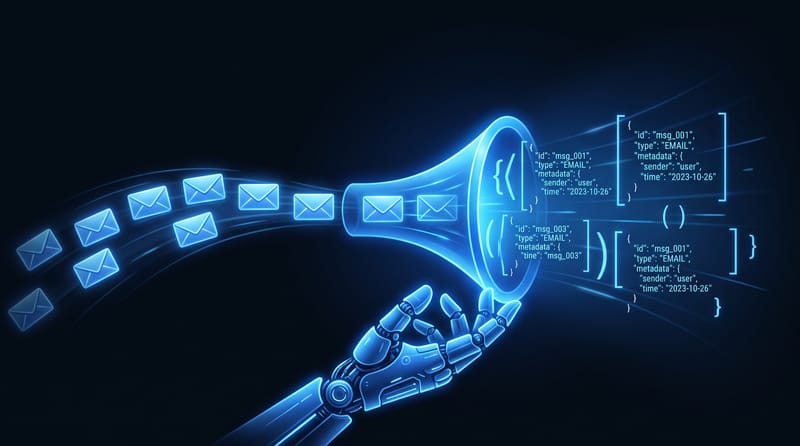
10 Best Email Automation Tools for Developers in 2026
Explore the top 10 email automation tools for developers. Compare APIs, deliverability, pricing, and AI agent use cases for Robotomail, SendGrid, and more.
Read post
Agent-Native Sending and Receiving: The Robotomail Guide
Master agent-native email sending and receiving with Robotomail. This end-to-end guide covers API usage, webhooks, DKIM, and best practices for developers.
Read post
Send Email Using JavaScript and the Robotomail API
Use server-side JavaScript to send email, protect the API key, handle failures and connect inbound replies to your application.
Read post
How to Send Email with Python and the Robotomail API
Send from Python using the standard library, check HTTP errors and connect incoming replies to a mailbox workflow.
Read post
Transactional Email API: Developer's Guide 2026
Master transactional email API. Learn how it works, best practices, security, and choose the right one for your app in 2026. Start now!
Read post
What Is Email Threading? Headers, Replies and Agent Context
Understand Message-ID, In-Reply-To and References, keep API identifiers distinct, and debug threaded replies in an agent email workflow.
Read post
Best Email APIs for AI Agents: A Workflow Comparison
Evaluate sending, receiving, mailbox identity and conversation state across email APIs. Build and test a Robotomail workflow, then inspect detailed comparisons.
Read post
Email API for AI Agents: Integrate LangChain & AutoGen
Explore the email API for AI agents. Understand its unique advantages vs. SendGrid/Gmail & seamlessly integrate into LangChain/AutoGen stacks. 2026 guide!
Read post
Email Can Receive But Not Send: A Developer's Guide
Troubleshoot why your email can receive but not send. A step-by-step guide for developers on fixing SMTP, API, DNS, and provider block issues.
Read post
Email for AI Agents: Email Infrastructure Guide 2026
Email for AI agents explained: why agents need native mailboxes, how to handle inbound via webhooks and SSE, and how to build durable thread-aware workflows.
Read post
Email Workflow Automation for AI Agent Mailboxes in 2026
Build email workflow automation for AI agents with mailboxes, webhooks, SSE, and thread state. Skip legacy SMTP and OAuth with agent-native infrastructure.
Read post
How to Use AI to Answer Emails: An Agent Developer's Guide
Learn how to use AI to answer emails by building an autonomous agent. This end-to-end guide covers API setup, prompt engineering, context, and deliverability.
Read post
Build an AI Agent to Manage Emails: 2026 Developer Guide
Build an AI agent to manage emails with Robotomail. This 2026 guide covers API provisioning, LangChain and CrewAI integration, and autonomous deployment.
Read post
AI Email Assistant: Build Autonomous Agent with Robotomail
Learn to build an autonomous AI email assistant. This hands-on guide covers using the Robotomail API for mailboxes, webhooks, threading, and LLM integration.
Read post
Agentic Email & Inbox for AI Agents: Architecture Guide
What agentic email and an agentic inbox are, and how to build them: architecture, security, and LangChain/CrewAI integration for autonomous agents.
Read post
AI Agent Email: Developer Guide to Agent Mailboxes
Learn what AI agent email is, how it works, and why it's essential for autonomous agents. A complete guide to architectures, integrations, and best practices.
Read post
Email Integration for AI Agents: A Complete Guide (2026)
A complete guide to email integration for AI agents. Learn to create mailboxes, send and receive via REST API, manage threads, and set up custom domains.
Read post
Send Emails with Attachments Using the Robotomail API
Upload a file, reference its attachment ID in a send request, retrieve incoming files and handle access, size and delivery errors.
Read post
Webhooks vs WebSockets: A Guide for AI Agent Developers
Webhooks vs WebSockets: which is right for your AI agent? This guide compares latency, reliability, and scaling, with Robotomail patterns for developers.
Read post